Timeline Display Mode
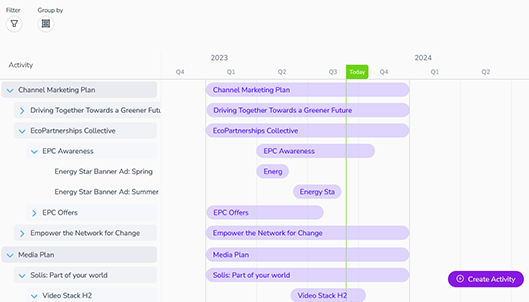
The Timeline display mode provides an overview of your activities in a calendar-style timeline. Activities are represented on the timeline as horizontal bars based on their in-market dates, with today's date marked by a vertical green line:

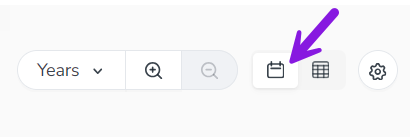
To switch to the Summary display mode, set the  Timeline /
  Summary toggle button to the Timeline setting:
You can adjust the size of the time scale displayed to your needs. To do this, use the Select Timeline Scale menu and the Zoom In / Zoom Out controls in the toolbar:
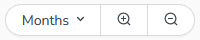
You can select a time scale (such as months or quarters) directly from the menu, or use the zoom buttons to switch between scales.
The selected time scale setting determines the major scale, while the minor scale is always the next-lower scale (except for the most granular scale setting, Days). For example, here the time scale is set to Years, so the major scale is years and the minor scale is quarters:
Note
The zoom setting is reset to default whenever you navigate away from the Activities section.
If your administrator has configured this feature, can also color-code the activity bars to make it easier to identify activities. For more information, see Color-Coding Timeline Activities.