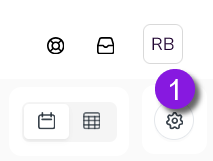
Display Settings Toolbar
The display settings toolbar contains a variety of display settings that you can use to customize the activity hierarchy to your needs and preferences. You can use the controls in the toolbar to set which activities are visible in the activity hierarchy, and how those activities are displayed.
Most of the display settings in the toolbar are available for both of the display modes (Timeline or Summary), while some are specific to a display mode and are only shown when that display mode is active.
General display settings
The following toolbar functions are available in both the Timeline and Summary display modes:

-
Activity Search: Search for activities by name. Type in a keyword to filter the activity hierarchy to display only activities whose name contains the keyword.
-
Select View & View Options: Create, manage, and select views, which let you save and quickly apply display setting configurations (e.g. filters, groupings, color coding, etc.).
-
For more information, see Save Activity Hierarchy Display Settings as Views.
-
-
Filter Activities: Filter the activity hierarchy to only display activities that match selected criteria.
-
For more information, see Filtering and Grouping.
-
-
Group Activities: Group the activities in the hierarchy based on their values for a selected attribute.
-
For more information, see Filtering and Grouping.
-
-
Timeline / Summary Toggle: Switches the selected display mode between Timeline and Summary.
-
For more information, see Timeline Display Mode and Summary Display Mode.
-
-
Show Parent Activities (only visible when filters are applied): Reveals the parent activities of visible activities when filters are applied to the activity hierarchy. This setting is useful for seeing where each visible activity is located within the overall hierarchy, as this context is usually hidden when the activity hierarchy is filtered.


Timeline display settings
The following toolbar functions are only available when the Timeline display mode is used:

-
Select Color Coding: Color-code the activity bars in the timeline based on a selected attribute to make it easier to tell activities apart at a glance. Select an attribute to color the activity bars based on which value the activity has set for that attribute.
-
For more information, see Color-Coding Timeline Activities.
-
-
Select Timeline Scale & Zoom In / Zoom Out: Select the time scale used for the Timeline display mode directly, or zoom in to shorter time scales, or zoom out to longer time scales.
-
For more information, see Timeline Display Mode.
-
Summary display settings
The following toolbar functions are only available when the Summary display mode is used:

-
Configure Columns: Select which columns are displayed in the Summary table, and in what order.
-
For more information, see Comparing Activities > Customize the columns in the Summary table
-
Administrator-only settings
The following toolbar functions are only available to administrator users:
-
Settings (only visible to administrators): Opens the Activity Configuration page, where administrators can configure Uptempo Campaign Management settings.
-
For more information, see Configuring Activities.
-