Filtering and Grouping
About This Feature
By default, the activity hierarchy in Uptempo Campaign Management displays all activities that you have access to, at all levels of the hierarchy. To make a large activity hierarchy easier to work with, you can use filtering to limit which activities are visible, and grouping to adjust how they are displayed.
How Filtering Works
To filter activities, you can use the following criteria types:
-
Activity Type or Type Group: Restrict the view to activities of specific type groups or types.
-
Attribute Value: Restrict the view to activities whose attribute is or is not specified. Depending on the attribute type it is also possible to filter for activities whose attribute equals an exact value or whose value contain the entered keyword. For list attributes you can filter for one or several list entries.
Note
Filtering by an attribute will only apply to activities that have the attribute. When you filter by an attribute, you can additionally use the Type filter to ensure that only activities of types that have the selected attribute are displayed.
You can add as many filters as you need. Multiple filters are AND-linked: an activity must fulfill the conditions of all filters in order to be displayed.
If a filter hides an activity, it also hides its child activities.
If one or more applied filters only show a list of activities, but you want to see the filtered activities within the hierarchy, click the Show full hierarchy toggle. If the toggle is activated, you will see the filtered activities with their ancestors. However, you cannot edit the ancestors or view their details in such a view.
How Grouping Works
You can group activities together based their selected value for a specified Drop-Down List or Multi-Select List attribute.
In the following example, the selected attribute is Target Persona. Activities are grouped according to their value for this attribute, such as Traveler. Activities to which no value is assigned for the selected attribute are shown grouped under the No value set grouping:
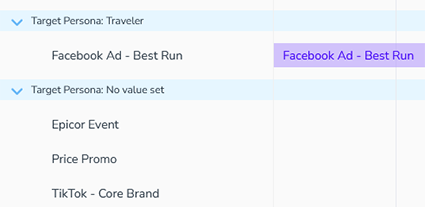
A grouping can only be applied to the activity types to which the attribute is assigned. If you see multiple levels of the activity hierarchy and the hierarchy contains multiple ancestors to whose descendant activities the grouping can be applied, then the descendants are displayed grouped under the respective ancestor.
Note
If you want to see a grouping over all activities to which the attribute is assigned, combine the grouping with a filtering that hides all other activities. An example would be an appropriately restricting type filter.