Creating and Managing Key Performance Indicators (KPIs)
As an administrator, you can easily create new custom KPIs to measure the performance of your activities against your marketing goals.
After creating a KPI, you can assign it to one or more activity types, so that users can record planned and actual results for that KPI on activities of those types.
You can also manage your existing KPIs to change their display order, or to retire KPIs that are no longer needed.
Before You Begin
To follow the instructions in this section:
-
You must have administrator access to your Uptempo instance.
-
You must have the necessary permissions to access Activity Configuration.
Creating and Using KPIs
You can create new KPIs at any time, and assign them to activity types to allow users to track the KPI on activities of that type.
Create a KPI and assign it to activity types
To create KPIs and assign them to activity types, follow these steps:
-
In the Uptempo navigation menu, click
 Activities.
 -
In the Activities section, click
 Settings.
The Activity Configuration page opens.
-
On the Activity Configuration page, click Measures > KPIs.
The table of KPIs is displayed.
-
Click Add KPI.
The Add KPI dialog opens.
-
In the Add KPI dialog, use the configuration fields to set up the KPI:
-
Name: Enter a name for the KPI. This is displayed as the title text for the KPI in the Details panel of activities where this KPI is used.
-
Description (optional): Enter a brief description of the KPI. If specified, this is displayed as a tooltip beside the KPI's title text in an activity's Details panel.
-
Value Type: Set the type of value to use to measure and display this KPI's results. Choose between:
-
Number: Use for results that are measured with a count, e.g. Visitors, Leads, Impressions
-
Currency: Use for results measured with a money value, e.g. Average Deal Size, CAC, LTV
-
Percentage: Use for results that are measured as a rate, e.g. Conversion Rate, Bounce Rate
-
-
Calculation Type: Set how result values will be aggregated. Choose between:
-
Sum: Values will be aggregated by adding all values together and displaying a total. Use when the total value is meaningful. e.g. Total Leads, Total Revenue
-
Average: Values will be aggregated by finding and displaying the average. Use when the per-instance result is meaningful, e.g. Avg. Email Open Rate, Avg. Cost Per Lead
-
-
Decimal Places: Set how many decimal places are used for recording and displaying result values (e.g. set 2 to display values as 1.23). Imported result values that have more decimal places than specified here will be recorded with up to 5 decimal places, but rounded for display according to this setting.
-
Improvement Direction: Set whether an increase or a decrease in the result value over time represents a performance improvement.
-
Link to Activity Type (optional): Select the activity type(s) that this KPI applies to. The KPI will be displayed under Details > KPIs for all activities of the type(s) specified here.
-
-
Click OK to finish creating the KPI.
The Add KPI dialog closes, and the new KPI appears in the table of KPIs under Activity Configuration > Measures > KPIs.
You have created a KPI. If you linked the KPI to any activity types, the new KPI will immediately be displayed on the Details panel of activities of those types.
Note
You can also link any existing KPI to an activity type while configuring the activity type itself. For instructions, see Create and Configure an Activity Type.
Managing KPIs
You can manage your existing KPIs to change the order in which they are displayed on activities, and to deactivate KPIs that you no longer want to track.
Change the display order of KPIs
You can manually modify the order in which KPIs are displayed on the KPIs tab of an activity's Details Panel, for example to highlight the most important KPIs.
Tip
When you deactivate a KPI, you can also move it to a lower position to indicate that it is no longer tracked, but still displayed for reference.
To change the display order of KPIs, follow these steps:
-
In Uptempo, click Activities in the sidebar to view the activity hierarchy.
-
Click
 Settings.
The Activity Configuration page opens.
-
In the Activity Configuration menu, click Measures > KPIs.
The Key Performance Indicators (KPIs) settings page is shown.
-
In the list of KPIs, find the KPI whose position in the order you want to change.
-
To quickly find a KPI by name, enter a keyword into the Search box to display only KPIs that contain that keyword in their name.
-
-
Use the KPI's
 Display Order handle to drag the KPI to the position in the list where you want it to appear:
-
The change is saved automatically, and takes effect immediately.
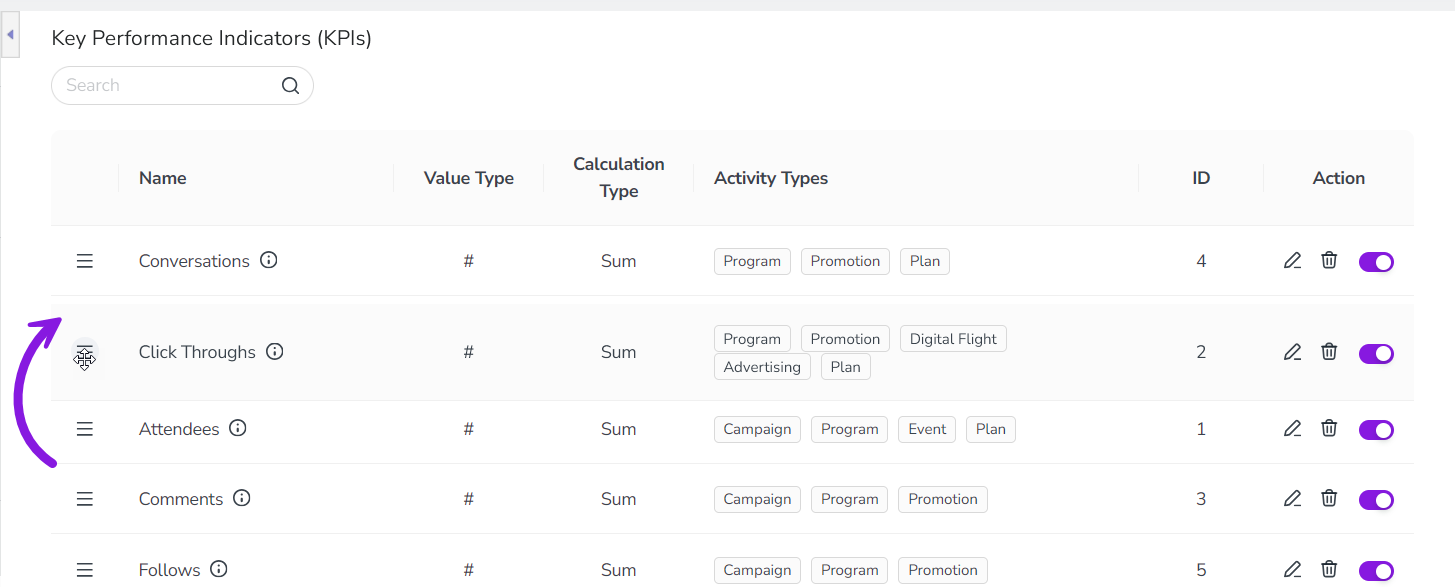
You have changed the display order of KPIs. KPIs that are linked to an activity type will now be displayed on activities of that type in the new order.
Deactivate a KPI
If you no longer want to track a KPI on your activities, you can deactivate that KPI to effectively retire it. You can deactivate any existing KPI at any time. When you deactivate a KPI:
-
The deactivated KPI will no longer be tracked on any newly created activity.
-
If the KPI was previously used on any activities, it will still remain visible on those activities (and its values can still be edited on those activities).
If you change your mind later and decide to start tracking a KPI again, you can also reactivate any deactivated KPI.
Note
The system does not record or display the date and time when a KPI was deactivated. If this information is important to you, we recommend separately keeping a record of when you deactivated (and reactivated, if applicable) specific KPIs.
Tip
When you deactivate a KPI, it will be deactivated for all activity types that the KPI is linked to. If you want to stop tracking a KPI only on activities of a specific type (but keep it on other activity types), you can edit the KPI to unlink it from that activity type.
If you do this, note that historical data for the KPI will no longer be visible on activities of the unlinked type. However, the data is not deleted, and will become visible again if you relink the KPI to the activity type.
To deactivate a KPI, follow these steps:
-
In Uptempo, click Activities in the sidebar to view the activity hierarchy.
-
Click
Settings.The Activity Configuration page opens.
-
In the Activity Configuration menu, click Measures > KPIs.
The Key Performance Indicators (KPIs) settings page is shown.
-
In the list of KPIs, find the KPI you want to deactivate.
-
To quickly find a KPI by name, enter a keyword into the Search box to display only KPIs that contain that keyword in their name.
-
-
To deactivate the KPI, click its Activate/Deactivate KPI toggle (in the Action column) to the off position (grey):
-
The change is saved automatically, and the KPI is deactivated with immediate effect.
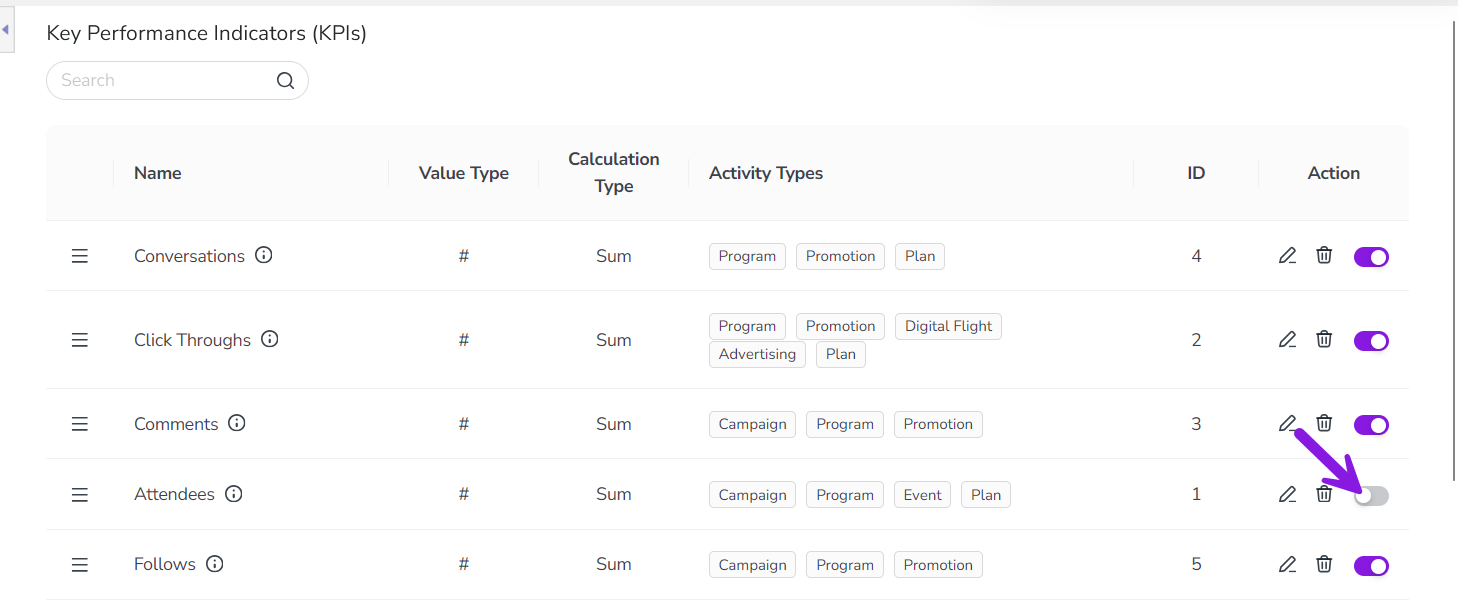
You have successfully deactivated a KPI, and it will no longer be displayed on new activities created after this point.
If you want to start tracking a deactivated KPI again, you can reactivate it at any time. To do this, follow the steps for deactivating KPIs, then switch the deactivated KPI's Activate/Deactivate KPI toggle (in the Action column) back to the on position (purple). The reactivated KPI will immediately be displayed again on all activities of the activity types that it is linked to.
Note
When you reactivate a KPI, it will also be added to any activities that were created while the KPI was deactivated. This means that you can go back to these activities and retroactively add values for the affected KPIs, if needed.