 Enhancing KPIs
So far only funnel-related KPIs could be managed for activities on the Impact tab in the Details panel. But not all activities exclusively aim to have a positive impact on the marketing and sales funnel. For example, quantitative results for a Brand Awareness objective could be measured by the number of impressions.
With August 2024 release you can set up and track a variety of KPIs. The following value types are available:
-
Number
-
Percentage
-
Currency
The KPIs can be calculated either as summary or as average value. KPIs are assigned to activity types.
 User Impact
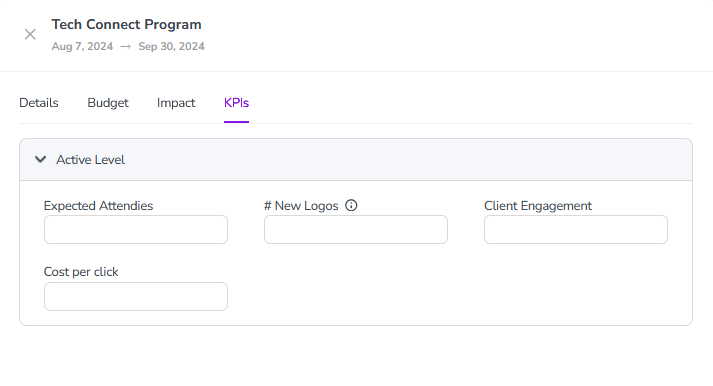
After creating an activity you can set up targets for the KPIs you plan to achieve on the KPIs tab of the Details panel:
Note
Entering actual results is currently not possible but this feature is planned in Uptempo's mid-term roadmap.
The KPI tab shows KPIs in three sections that allow you to compare the KPIs for different levels of the hierarchy:
-
Lower Levels: This section displays the rolls-ups of the KPIs of lower-level activities. For KPI data to be displayed here, the KPIs must be assigned to the type of activity displayed. If you hover over a value, a U icon is displayed to the right of it. If you click on the icon, the data of the KPI is deleted from the lower-level activities.

-
Active Level: This section shows the KPI data of the activity whose Details panel you are looking at. Enter your target here.
-
Higher Levels: This section displays the KPI values of the next higher level activity. For KPI data to be displayed here, the KPIs must be assigned to the type of activity displayed. If you hover over a value, a U icon is displayed to the right of it. If you click on the icon, the data of the KPI is deleted from the higher-level activity.

Where To Edit a KPI Within the Hierarchy
A KPI can be assigned to several levels within the activity hierarchy. Note that a value can only be entered once within a branch.
Once a value is entered, editing becomes unavailable on other levels of the branch. In case you want to enter a value on another level, click the U icon to reset the data. Then re-enter the data at the needed branch level.
How To Set Up
As an administrator you can set up KPIs in the settings section:
-
Click > Activities > Settings > KPIs.
-
Click Add KPI in the lower right corner.
-
In the Add KPI dialog, enter name and description.
-
Select value type.
-
Select calculation type.
-
Assign the KPI to the activity type for which you want to measure the KPI.
-
Click OK.
You created a KPI.
Alternatively to step 6, you can go to the Activity Groups page, select an activity type and assign all needed KPIs:
Custom KPIs in the Summary View
For better comparing with other activities, you can also display the KPIs in the Summary view.
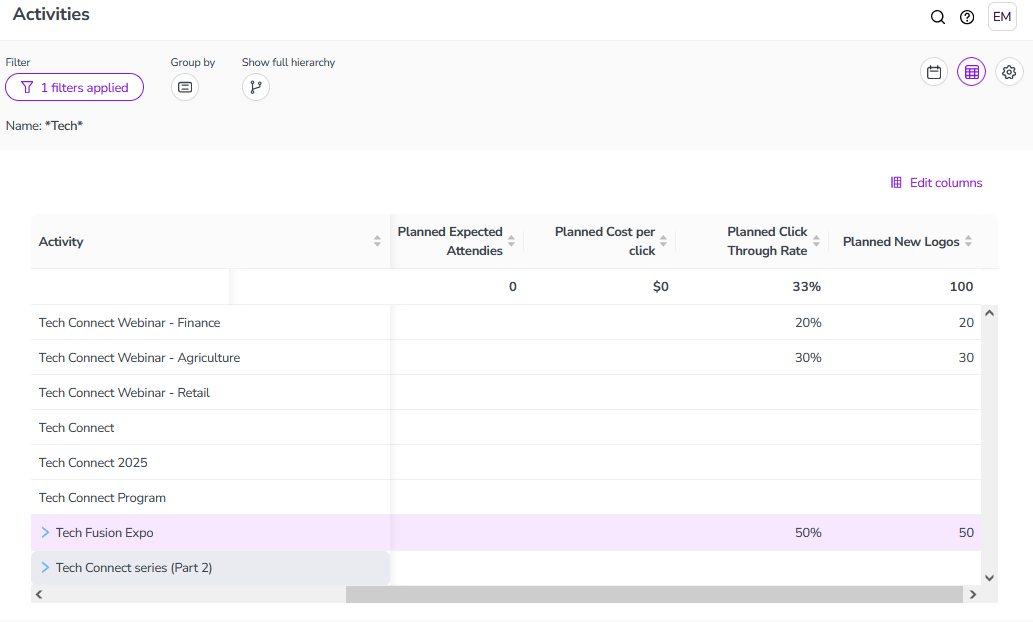
Each KPI can be selected as column to be displayed.