Release: November 2025
Discover all of the new Uptempo functionality introduced with the November 2025 release, available from November 26, 2025.
Note
Features marked with the tags Preview and Beta are not activated by default, but can be turned on in your Uptempo instance on request.
For more information, see Uptempo's Feature Release Lifecycle.
Campaign Management: Activity Configuration
Preview Streamlined activity type and type group configuration
We've completely redesigned the configuration experience for activity types and type groups to make setting up and managing your activity hierarchy simpler and more intuitive:
-
All types and type groups in one place: Activity types and type groups are now managed from a single, unified page. The new Types & Groups page shows all types and groups together in one list, so you can see at a glance which types belong to each group. With everything in one place, it’s significantly easier to understand and maintain your activity hierarchy.
-
More organized and intuitive settings: To make it easier to find the settings you need, activity types and type groups now have a simplified settings layout organized into easy-to-navigate sections. Plus, only the attributes that are attached to a type or type group are now shown, reducing visual clutter and keeping the focus on the information that matters.
-
Visual representation of activity rules: To provide a clearer view of how your activity hierarchy is structured, each activity type and type group's settings page now includes a diagram that shows its place in the hierarchy. These visualizations make it much easier to see how your activity types and type groups connect, validate your activity rules, and quickly identify (and fix) configuration issues.
→ Learn more about configuring activity types and type groups
Set default activity color-coding on the Timeline
In addition to color-coding activity bars on the Timeline by attribute, you can now also set up default color-coding based on activity type group.
Administrators can now set a Timeline Color for each activity type group (and for ungrouped individual activity types) to replace the system-default purple. On the Timeline, activity bars are displayed by default in their activity type group's assigned color, making it easier for users to tell activities apart at a glance.
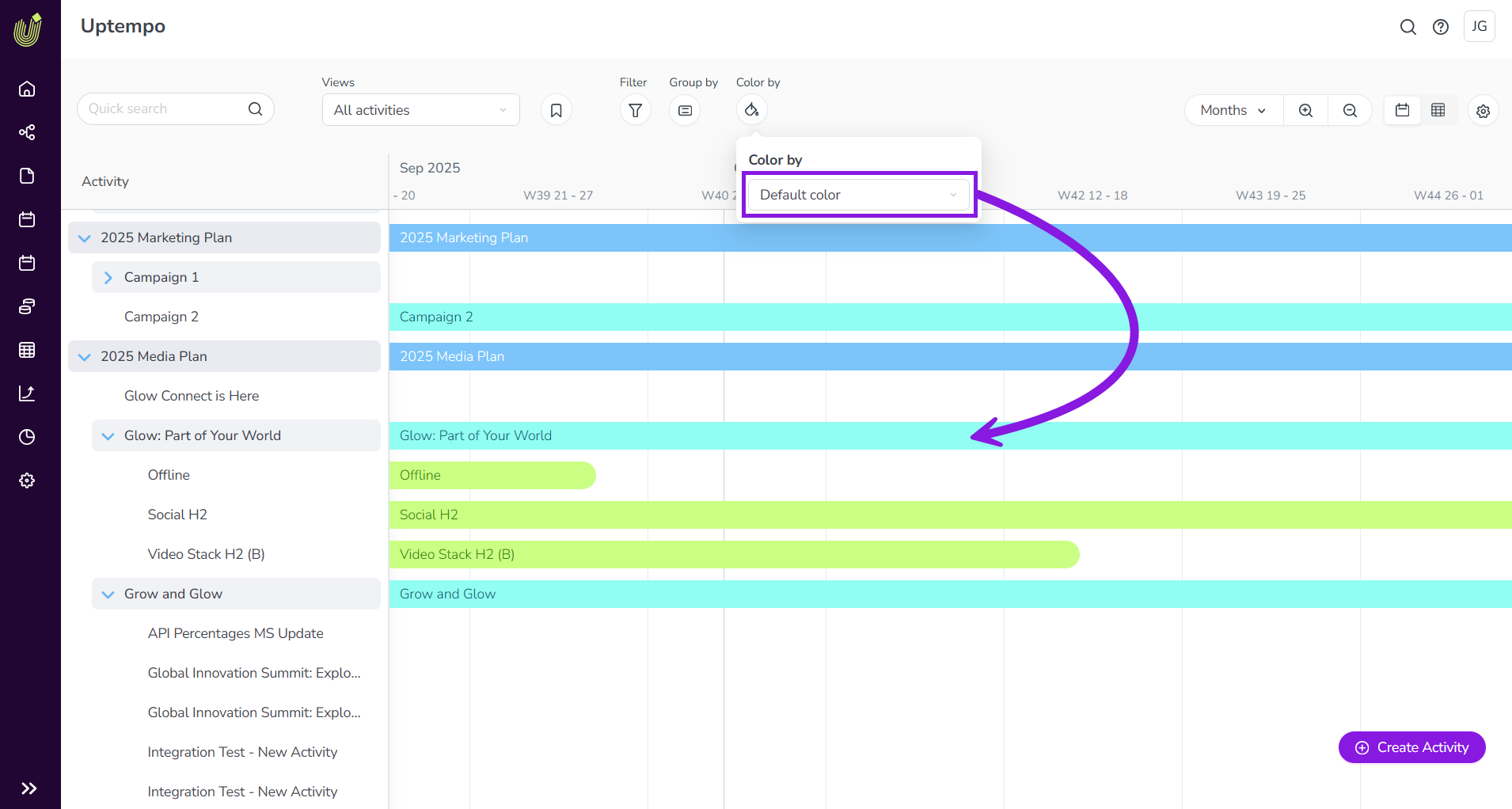
This feature was available in Preview in the September 2025 release, and is now generally available.
→ Learn more about configuring color-coding on the Timeline
More flexible rules for structuring the activity hierarchy
We've adjusted how activity rules work to give you more flexibility and control when designing your activity hierarchy.
-
Activity rules now support multiple parents: You can now define activity rules that define more than one parent for an activity type or type group. Previously, activities of any type could only be created under a single type of parent activity, which limited flexibility: for example, Tactic activities could be created under Campaign activities, but not directly under Campaign Management activities. With this update, any activity type can have multiple valid parents, giving you more freedom to design a hierarchy that matches how your organization plans and tracks work.
-
Easier adjustments from year to year: This added flexibility also significantly reduces your workload when you enter a new planning cycle. Instead of rebuilding large portions of your hierarchy when you need to make changes, you can now adjust only the activity types that need to change, while keeping everything else intact. Changes that used to take hours can now be made in minutes, all without disrupting historical data.
This feature was available in Preview in the September 2025 release, and is now generally available.
→ Learn more about configuring activity rules
Add formatted text content to activities
We've introduced a new Rich Text attribute for activities, allowing you to add fully formatted content directly to your Uptempo activities:
-
Make key context available where your teams work: The Rich Text attribute lets you include meaningful background information (such as campaign one-pagers or Plan on a Page summaries) directly on the relevant activity. You can also add clickable links to supporting assets stored elsewhere, making important documents easy to find and reference at any time.
-
All the formatting options you need: Rich Text fields appear on activities as a WYSIWYG editor, giving you a familiar toolbar to format and structure your content. Use bold, italics, and underline; add up to three heading levels; create numbered or bulleted lists; and call out important details with block quotes.
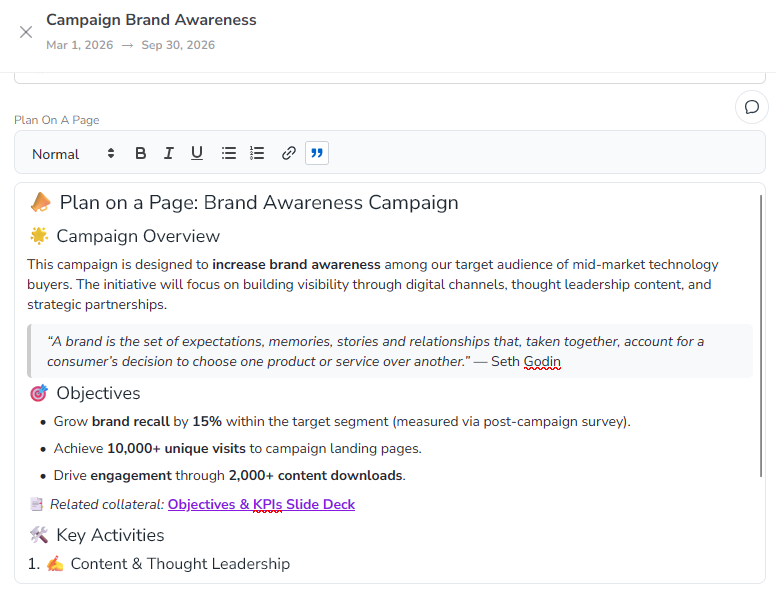
This feature was available in Preview in the September 2025 release, and is now generally available.
→ Learn more about configuring activity attribute types
Control which activity types can be connected to investments
Administrators can now control exactly which activity types can be connected to investments, allowing you to set clear rules for how activities can be funded.
-
Choose which activity types support Connect to Spend: You can now turn the Connect to Spend feature on or off for each activity type. When it's turned off, activities of that type can't be connected to investments, and won't appear as selectable options from the investment side. This lets you decide exactly where funding connections should (and shouldn’t) be made.
-
Support bottom-up planning: In the past, investments could be connected to activities at any level of the hierarchy. Now, by restricting Connect to Spend to only the lowest-level activity types, you can enforce a cleaner, bottom-up planning process. This improves clarity in both planning and reporting and reduces the time you spend correcting incorrectly connected funds.
This feature was available in Preview in the September 2025 release, and is now generally available.
→ Learn more about configuring options for activity types
Campaign Management: Activities
Improved column configuration for Summary
We’ve completely redesigned the column-configuration experience in the Summary display mode. As the number of available columns has grown, we’ve updated the controls to make it much easier to find, manage, and organize the information you want to see. Highlights include:
-
Dedicated list of visible columns: Selected columns now appear in their own separate list, giving you a clear view of what’s currently displayed in the table. This makes it faster to review your selections and adjust them as needed.
-
Grouping and search for better discoverability: The full list of available columns is now organized into intuitive groups with subheadings, and you can search to quickly find exactly what you’re looking for.
-
Pin up to three key columns: You can now pin up to three columns so they remain visible as you scroll sideways through the Summary table, just like the Activities column. This helps you keep your most important information in view at all times.
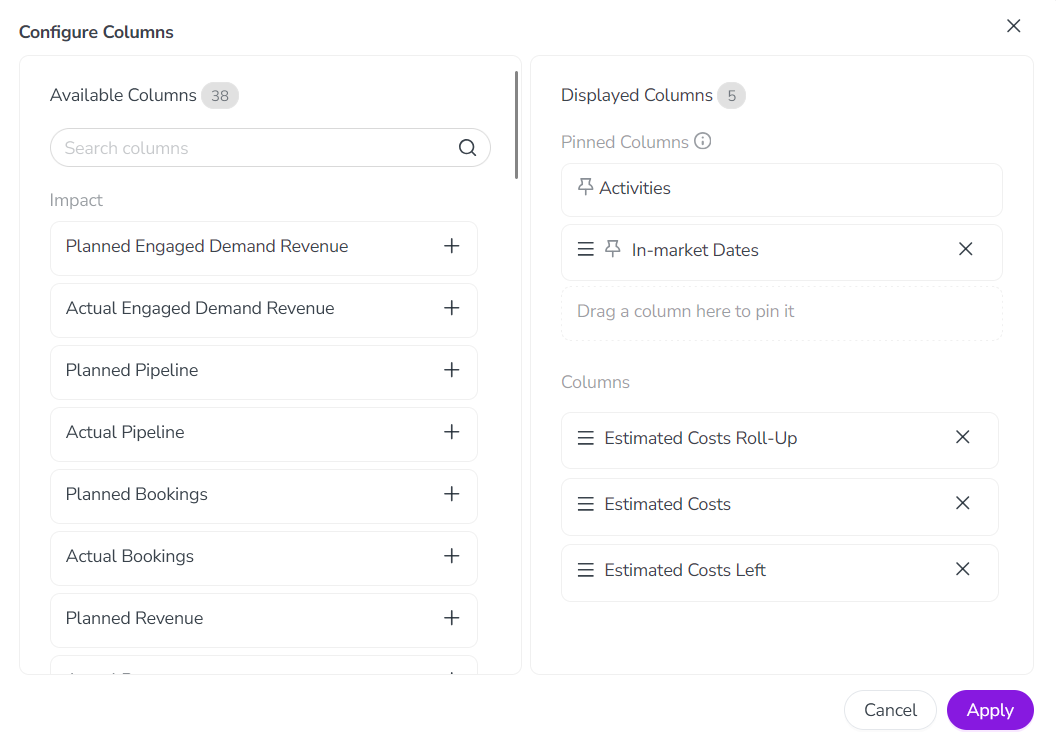
This feature was available in Preview in the September 2025 release, and is now generally available.
→ Learn more about customizing the columns in the Summary display mode
Comments on activities
You can now add comments directly to activities, making it easier to collaborate in context.
-
Keep communication in one place: With the new Comments feature, you can capture communication about your marketing activities right on the activities themselves. Use comments to add explanations of updates and record decisions, so that the reasoning behind changes and approvals is always clear and visible — no more digging through chats, emails, and meeting notes to figure out what happened.
-
Loop people into the conversation: When an activity needs someone's attention, you can @mention them in comments, and they'll see a notification in Uptempo. You can also reply directly to a comment to create a thread and keep discussions organized.
-
React with emoji: For those times words when words aren't enough, or when a thumbs-up is all you need, you can use emoji. Emoji are supported both in comments themselves, and as quick reactions to any comment.
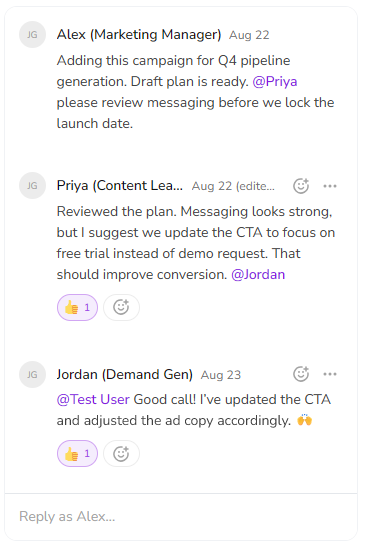
This feature was available in Preview in the September 2025 release, and is now generally available.
→ Learn more about commenting on activities
Financial Management: Investments
Preview More ways to distribute investment funds between connected activities
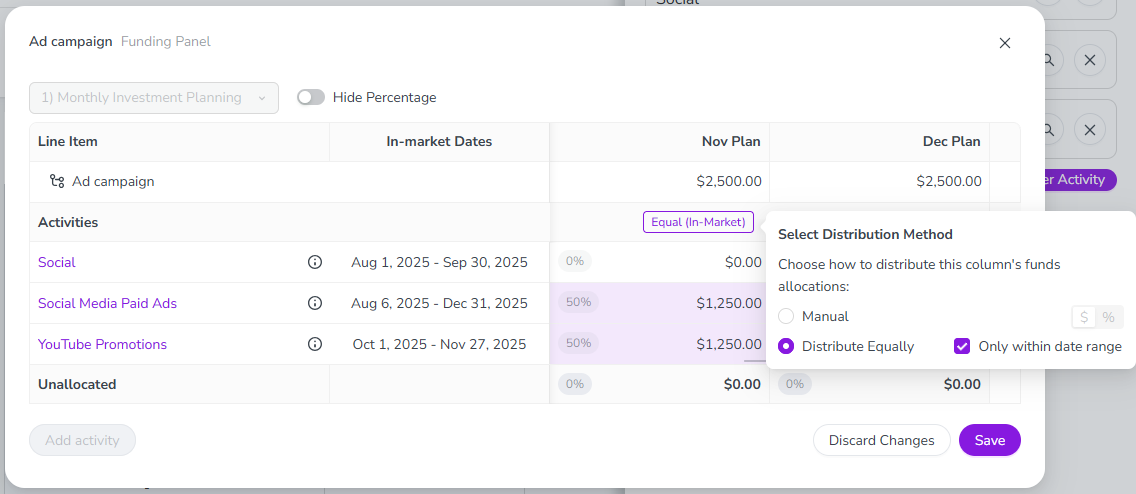
We’ve expanded the funds allocation options in the Activity Funding Panel to give you more flexibility, and help you allocate investment funds with less effort.
-
Manually allocate funds by percentage: When distributing funds manually between multiple connected activities, you can now assign each activity a percentage share of the total investment. Simply enter a percentage (up to two decimals), and the system will allocate the corresponding currency amount for you — no need to calculate it yourself.
-
Automatically allocate funds equally between connected activities: Automatic allocation now works even when multiple activities are connected to an investment. The new Distribute Equally method divides the investment evenly across all connected activities, and automatically recalculates allocations if activities change or if the investment amount is updated.
-
Optional date-based auto-allocation: If you have set date ranges on your budget columns, you can set Distribute Equally to allocate funds only to activities whose in-market dates fall within the column’s date range. This ensures funds are distributed only to activities relevant to that timeframe.
-
-
Smoother experience when connecting multiple activities: Adding more than one activity to an investment no longer forces the investment into Manual Allocation mode. Instead, when a second activity is connected, the system automatically switches the investment to the new Distribute Equally method. Because of this improvement, the Convert to Manual Allocation and Revert to Automatic Allocation buttons are no longer needed, and have been removed.
→ Learn more about the new options for distributing funds between multiple connected activities